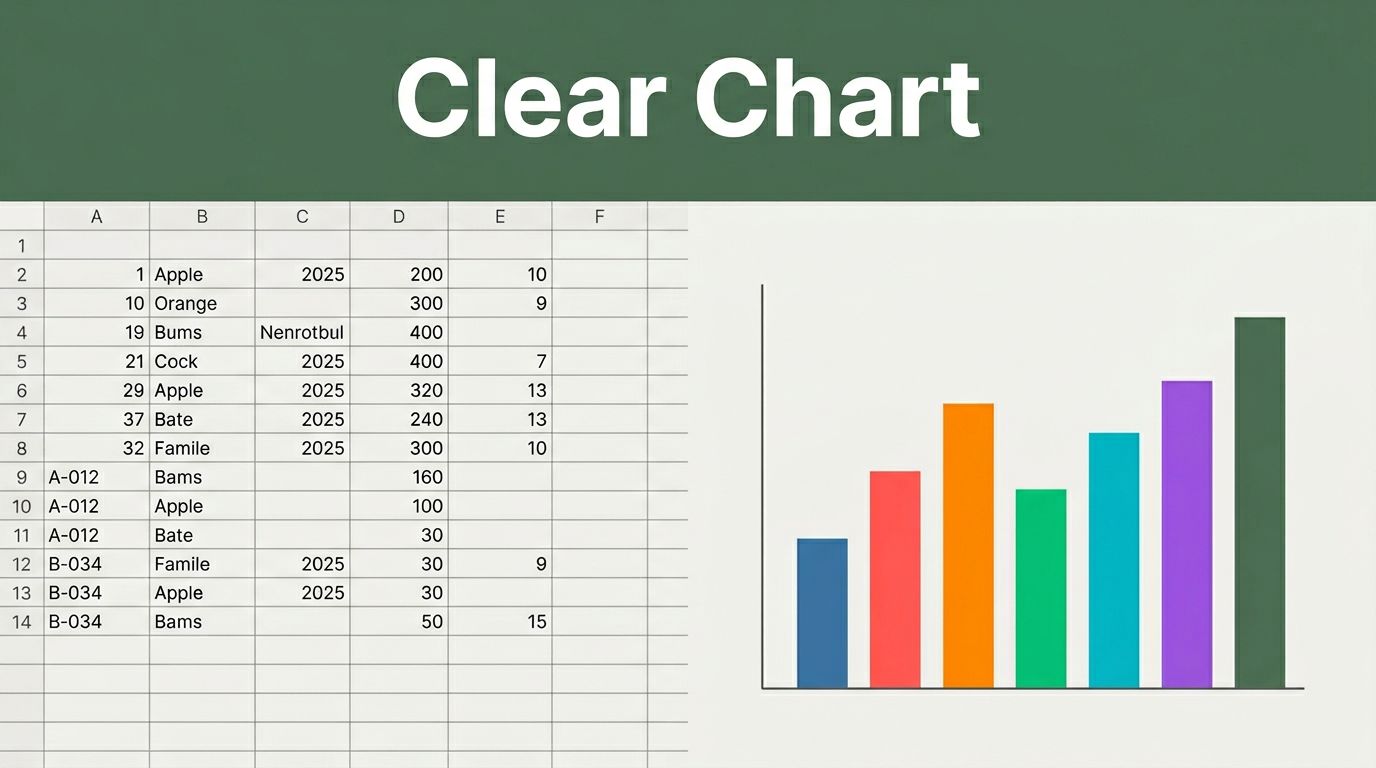
Imagine staring at a messy sales spreadsheet full of typos, duplicates, and blank cells. Your boss asks for insights, but the numbers hide in chaos. Raw data confuses everyone. Clear charts change that. They reveal trends and make decisions simple.
You face this daily. Spreadsheets pile up from reports or exports. People skim rows but miss the story. A good chart fixes it fast. It shows sales drops or top regions at a glance.
This guide walks you through the process. First, clean your data. Next, pick the right chart type. Then, choose a tool like Looker Studio. Build the chart step by step. Finally, polish it to impress.
We use 2026 favorites such as Looker Studio for its drag-and-drop ease. No coding needed. Power BI Desktop works too for Microsoft fans. By the end, you’ll create pro charts. Your data will tell stories that stick.
Start by Cleaning Your Raw Data So It Plays Nice
Raw data rarely cooperates. It comes with errors that wreck charts. Start in Google Sheets or Excel. Import your file first. Then fix issues before charting.
Sales data often looks rough. Picture columns for Month, Sales, Region. Blanks appear where numbers should sit. Typos like “Jan” versus “January” confuse sorts. Duplicates repeat rows.
Clean data prevents disasters. Charts twist without it. For example, mismatched dates skip months. Bosses spot bad visuals right away.
Get data tidy with basic steps. Delete empty rows. Standardize text. Remove extras. Tools make it quick.
Microsoft offers top ways to clean data in Excel. They cover spaces and cases well.

Spot the Usual Data Messes and Fix Them Fast
Blanks top the list. They break sums. Duplicates inflate totals. Wrong formats mix text and numbers.
Filters help spot them. In Sheets, click Data then Create a filter. Scan columns. Empty cells glow. Select and delete rows.
For duplicates, highlight data. Go to Data > Remove duplicates. Pick columns like Region. It flags matches.
Text errors like “N/A” in sales? Replace with 0. Use Find and Replace. Type “N/A” then swap to 0. Dates fix with Format > Number > Date.
Numbers with extra spaces? TRIM function cleans them. Enter =TRIM(A2) in a new column. Copy down. Paste values back.
These fixes take minutes. Messes vanish. Your data shapes up.
Turn It into a Tidy Table Ready for Charting
Tidy means one row per item. One column per detail. No merged cells. Headers clear.
Before: Sales data jumbled. Multiple months per row. After: Each sale its row. Month in column A, Sales in B, Region in C.
| Messy Data | Tidy Data |
|---|---|
| Jan: East 500, West 300 | Month: Jan, Region: East, Sales: 500 |
| Feb: East 600 | Month: Jan, Region: West, Sales: 300 |
Pivot tables summarize. Select data. Insert > Pivot table. Rows for Month, Values for Sales sum. Group totals easy.
Clean tables feed charts perfectly. No gaps. No confusion.
Choose the Right Chart Type to Highlight Your Key Story
Charts fail without the right type. Match it to your goal. Compare categories? Use bars. Show time trends? Pick lines.
Sales by region suits bars. Monthly growth needs lines. Parts of a whole fit pies, but limit to five slices.
Zoho lists 20+ chart types for data stories. They explain matches well.
Pick based on what you show.
| Goal | Best Chart | Why It Works |
|---|---|---|
| Compare categories | Bar or column | Side-by-side heights easy to read |
| Trends over time | Line | Connects points for smooth flow |
| Parts of whole | Pie (few slices) | Shows shares at a glance |
| Two variables | Scatter | Spots patterns like correlations |
| Grid data | Heat map | Colors highlight highs and lows |
Bars beat pies for many items. Lines shine for sequences.
When Bars or Lines Make Comparisons Crystal Clear
Bars compare regions. Tallest bar wins sales. Group by month stacks them.
Columns work vertical. Same idea. Space bars for clarity.
Lines track time. Dots connect. Rises and falls pop. Add multiple lines for regions.
Pros stay simple. Readers grasp fast. No math needed.
Use Scatter or Heat Maps for Hidden Patterns
Scatter plots pair variables. Sales on Y, ad spend on X. Dots cluster show links.
Bubble size adds a third metric. Bigger bubbles mean more units.
Heat maps grid data. Rows for days, columns for regions. Colors deepen for high sales.
Shades reveal patterns. Dark spots flag issues. These charts uncover what tables hide.
Pick a Simple Tool That Fits Beginners in 2026
Tools make charting easy. No code required. Looker Studio leads free options. Drag and drop from Google Sheets.
Power BI Desktop offers AI hints. Feels like Excel. Tableau Public shares public viz. Zoho Analytics auto-builds reports.
Looker wins for beginners. Free forever. Templates speed starts. Connects 600+ sources.
These beat old Excel charts. Real-time updates. Interactive filters. Share links instant.
Start with Looker if Google fits. Test Power BI otherwise.
Build Your First Chart Step by Step Without Stress
Looker Studio tutorial starts simple. Open studio.looker.com. Sign in.
- Click Create then Report. Blank canvas loads.
- Add data. Click Add data. Pick Google Sheets. Select your clean file.
- Choose chart. Toolbar shows types. Drag Bar chart to page.
Graphed explains creating charts in Looker Studio. 4. Set fields. Dimension: Region to X-axis. Metric: Sales sum to Y-axis. 5. Add style. Colors for regions. Title: “Sales by Region Q1 2026”. 6. Filters and legend. Drag Month to filter. Auto legend appears.
Preview updates live. Test filters. Share link ready.

Success comes quick. Practice builds speed.
Polish Your Chart to Shine and Skip Costly Mistakes
Titles matter. Use “Sales Growth by Region, 2026”. Descriptive but short.
Labels on axes. Units like “$ Thousands”. Legend clear.
Start Y-axis at zero. Even intervals. Two to five colors max. Sort descending.
Fivenumber lists best practices for 2026 visualizations.
Test it. Show a friend. Explain in 10 seconds?

Dodge Clutter and Bad Scales for Honest Views
One or two messages per chart. Split complex ones.
Clutter hides points. Remove gridlines if busy. Focus key data.
Scales build trust. Zero base prevents tricks. Label $ or % clear.
Fix Colors, Labels, and Types for Quick Understanding
Colors contrast. Blues and grays safe. Avoid red-green for colorblind.
Labels full yet brief. Hover tips help interactives.
Wrong type misleads. Ditch pies over five. No 3D distorts.
These tweaks pro-up your work.
Clean data leads to clear charts. Pick types that fit your story. Tools like Looker Studio simplify builds. Polish seals the deal.
Practice now. Grab sample sales data. Follow steps in Looker. Watch insights emerge.
Better decisions follow. Impress teams. Share your first chart below. Your data story awaits!